
Getting Started
AI Providers connects Unity code and editor tools to HTTP or local-model services. The provider package is separate from Dialogue Graph System (DGS). DGS 4.0 includes its AI Extension, but AI authoring also needs the matching AI Providers 2.2.0 update. That update is still a release candidate; the published Store listing remains 1.0.0. Do not treat the public 1.0.0 listing as the DGS 4.0 prerequisite. DGS graphs continue to work without AI Providers.
Requirements: Unity 2022.3 LTS or newer. AI Providers is a standalone .unitypackage; it does not depend on DGS or AI Extension. Provider accounts, usage charges, native subscription tools, and local models are supplied separately.
Choose a profile type
The profile families below describe the 2.2.0 release candidate. The published 1.0.0 package does not provide the DGS 4.0 integration.
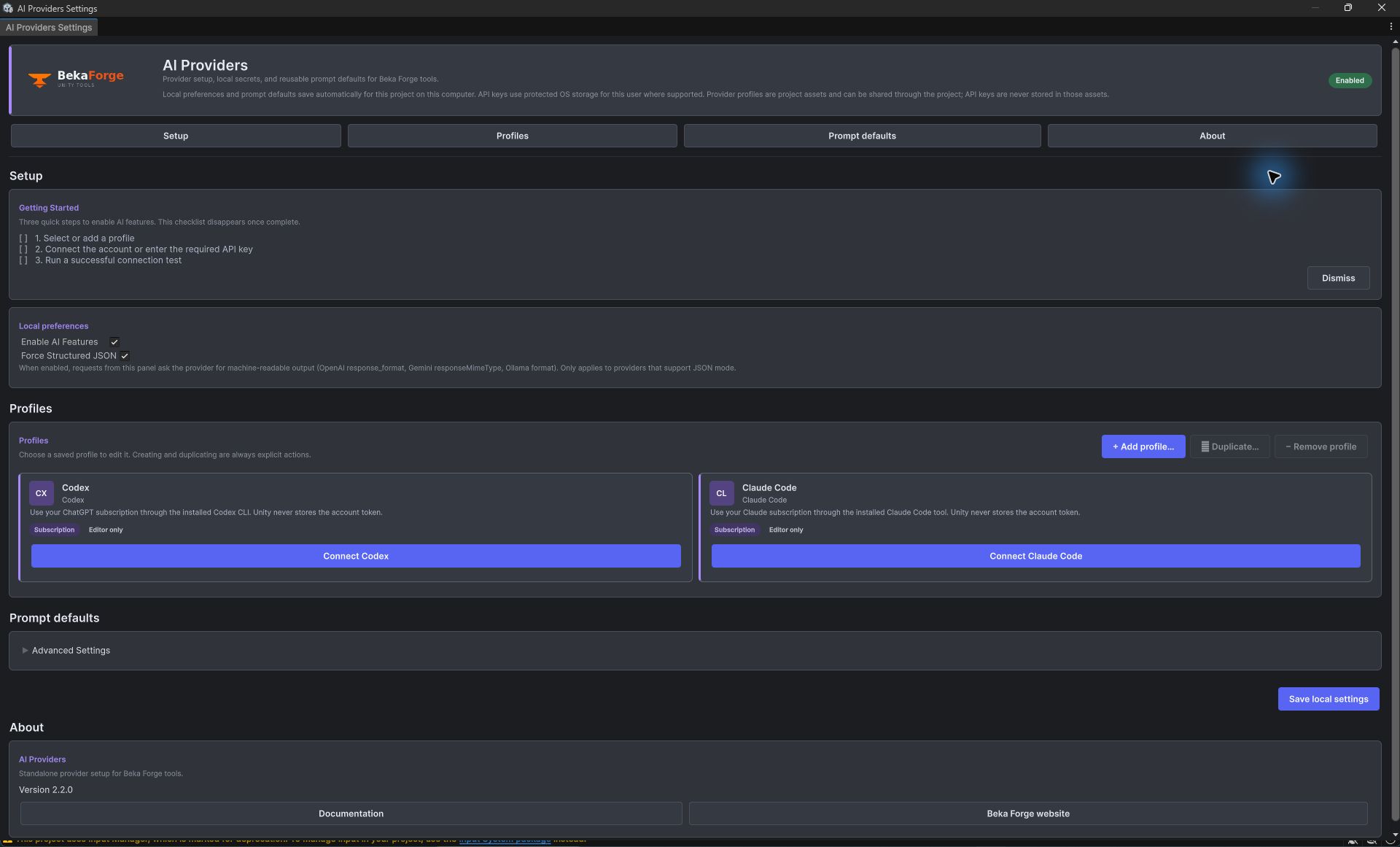
- API and local providers (OpenAI, OpenAI Compatible, DeepSeek, Gemini, Ollama, and Custom JSON) use an API endpoint and, where required, an API key.
- Codex and Claude Code are editor-only subscription connections through tools you install and sign into yourself. They do not run in a player build and do not turn a subscription into API billing.
- Use an API profile for runtime/player requests. Check the package listing and provider terms for your chosen service before shipping requests.
Configure and test an API profile
- Install the AI Providers package that matches your project. For DGS 4.0 AI authoring, wait for the separate AI Providers 2.2.0 release candidate; the published 1.0.0 release is not compatible with that integration.
- Open
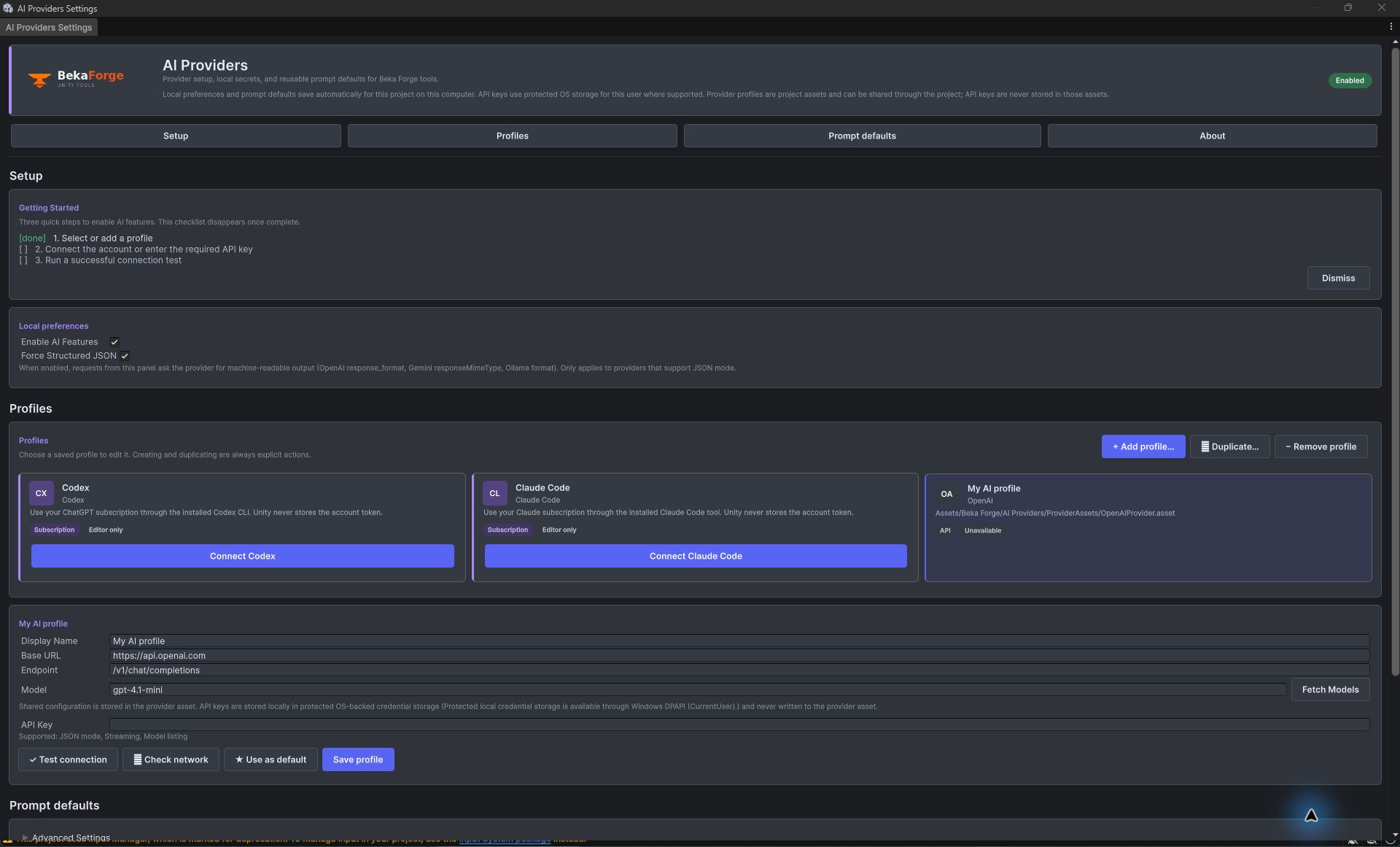
Tools > Beka Forge > AI Providers > Settings. Choose Add Profile, select the API/local profile family and provider type, name it, and confirm creation. - Review the profile's Base URL, provider-specific endpoint, and Model. Custom JSON profiles also need a valid HTTP method, request-body template, and response-text path for that service's JSON response.
- Enter the API key in the masked key field and save. The key is stored outside the provider asset in protected OS-backed credential storage where the platform supports it; it is not included in project assets or source control. If protected storage is unavailable, the package reports that limitation instead of falling back to plaintext.
- Choose Test connection. A ready profile has a successful test result and the intended profile selected as the default for tools that use the default. A successful test confirms connectivity and response parsing, not billing, quota, or permission for every model.
Send a first runtime prompt
Assign a provider asset to a component field in the Inspector. Build the immutable request snapshot on Unity's main thread, then use the coroutine adapter so the request can be cancelled and does not block a frame.
using BekaForge.AIProviders.Runtime;
using UnityEngine;

public sealed class FirstPrompt : MonoBehaviour
{
    [SerializeField] private LlmProviderDefinitionBase provider;
    private PromptCoroutineHandle request;

    public void Send()
    {
        if (request != null) return;

        var prompt = LlmPromptRequest.CreateWithSystemPrompt(
            systemPrompt: "Answer in one concise sentence.",
            userPrompt: "What does a dialogue graph represent?",
            maxTokens: 128);

        PromptCoroutineHandle requestHandle = null;
        requestHandle = AiProvidersService.BeginPromptCoroutine(provider, prompt,
            result =>
            {
                if (request != requestHandle) return;
                if (result.Success) Debug.Log(result.ResponseText);
                else Debug.LogError($"{result.Error} ({result.Diagnostic?.hint})");
                request = null;
            });
        request = requestHandle;
        StartCoroutine(requestHandle.Coroutine);
    }

    private void OnDisable()
    {
        var requestHandle = request;
        request = null;
        requestHandle?.Cancel();
    }
}
For a simple editor request, LlmPromptRequest.CreateUserOnly creates a typed user prompt. For editor workflows built around async/await, call TryBuildExecutionSnapshot on the Unity main thread and pass the resulting snapshot to SendPromptAsync. The older synchronous TrySendPrompt API is obsolete and blocks its caller.
See the public API reference for typed requests and service overloads, or use troubleshooting if profile readiness or a request fails.
For DGS users
DGS 4.0's AI Extension is bundled with DGS. Providers is installed separately and is needed only for AI features. Once the compatible Providers version is available, use the DGS AI authoring workflow to configure the provider, draft a plan, inspect it, apply selected operations, and validate the graph.